
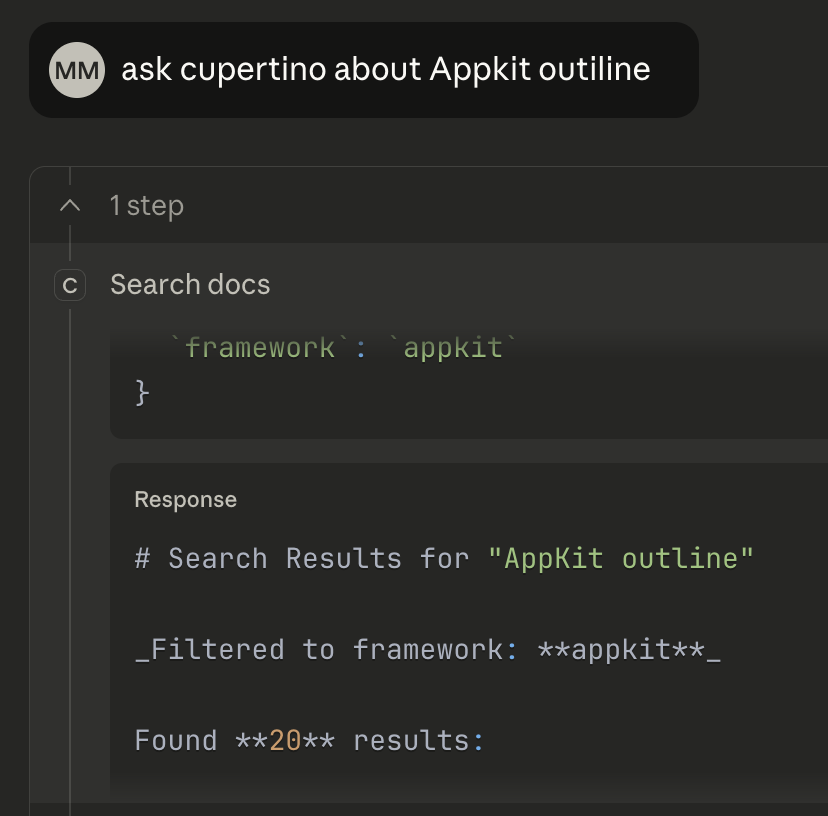
Cupertino v0.3.4: One-Line Install & 150K+ Apple Docs
TL;DR: One command installs everything. Homebrew is also available.
bash <(curl -sSL https://raw.githubusercontent.com/mihaelamj/cupertino/main/install.sh)
What Changed
In v0.3.0, I introduced cupertino setup to download pre-built databases. But you still had to clone the repo and build from source first. That’s two steps too many.
Now it’s one line:
bash <(curl -sSL https://raw.githubusercontent.com/mihaelamj/cupertino/main/install.sh)
This:
- Downloads a pre-built universal binary (arm64 + x86_64)
- Installs to
/usr/local/bin - Downloads documentation databases (~230 MB)
Total time: under a minute.
Signed and Notarized
Getting a command-line tool to “just work” on macOS is harder than it sounds. Without proper signing, users see scary “unidentified developer” warnings. Without notarization, Gatekeeper blocks execution entirely.
The release workflow now handles this automatically:
- GitHub Actions builds a universal binary (arm64 + x86_64) on every release tag
- Developer ID signing with my Apple Developer certificate
- Apple notarization submits to Apple’s servers for malware scanning
- Preserved signatures using
dittoinstead ofcpto maintain code signing through the install process
The result: download, install, run. No security dialogs. No right-click workarounds. No “are you sure?” prompts.
This took several iterations to get right—the signing must happen in CI, notarization requires waiting for Apple’s servers, and even copying the file wrong can strip the signature. But now it’s automated and works every time.
Homebrew Support
Prefer Homebrew? Now available:
brew tap mihaelamj/tap
brew install cupertino
cupertino setup
Three lines instead of one, but integrates with your existing Homebrew workflow.
150,000+ Apple Documentation Pages
The database has grown significantly:
| Version | Documentation Pages | Sample Projects |
| v0.2.x | ~21,000 | 606 |
| v0.3.0 | ~138,000 | 606 |
| v0.3.4 | ~150,000+ | 606 |
More coverage means better search results for your AI assistant.
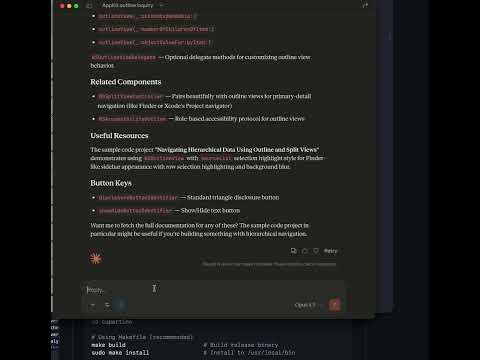
Demo Video
Watch the one-line install and Claude Desktop in action:
Three Install Methods
1. One-Line Install (Recommended)
bash <(curl -sSL https://raw.githubusercontent.com/mihaelamj/cupertino/main/install.sh)
Downloads binary and databases. Ready in under a minute.
2. Homebrew
brew tap mihaelamj/tap
brew install cupertino
cupertino setup
Integrates with Homebrew for updates via brew upgrade cupertino.
3. Build from Source
git clone https://github.com/mihaelamj/cupertino.git
cd cupertino && make build && sudo make install
cupertino setup
For those who want to inspect or modify the code.
What’s Inside
After installation, you have:
/usr/local/bin/cupertino- The MCP server binary~/.cupertino/search.db- 150K+ documentation pages~/.cupertino/samples.db- 606 sample projects, 18K+ source files
Start the server and configure Claude Desktop:
cupertino serve
{
  "mcpServers": {
    "cupertino": {
      "command": "/usr/local/bin/cupertino"
    }
  }
}
Registry Submissions
I’ve submitted Cupertino to the major MCP server registries:
These directories help developers discover MCP servers—getting listed would bring more visibility to the Apple developer community.
Links
- GitHub: github.com/mihaelamj/cupertino
- Homebrew Tap: github.com/mihaelamj/homebrew-tap
- Demo Video: YouTube
The best install experience is no install experience. One line is close enough.